

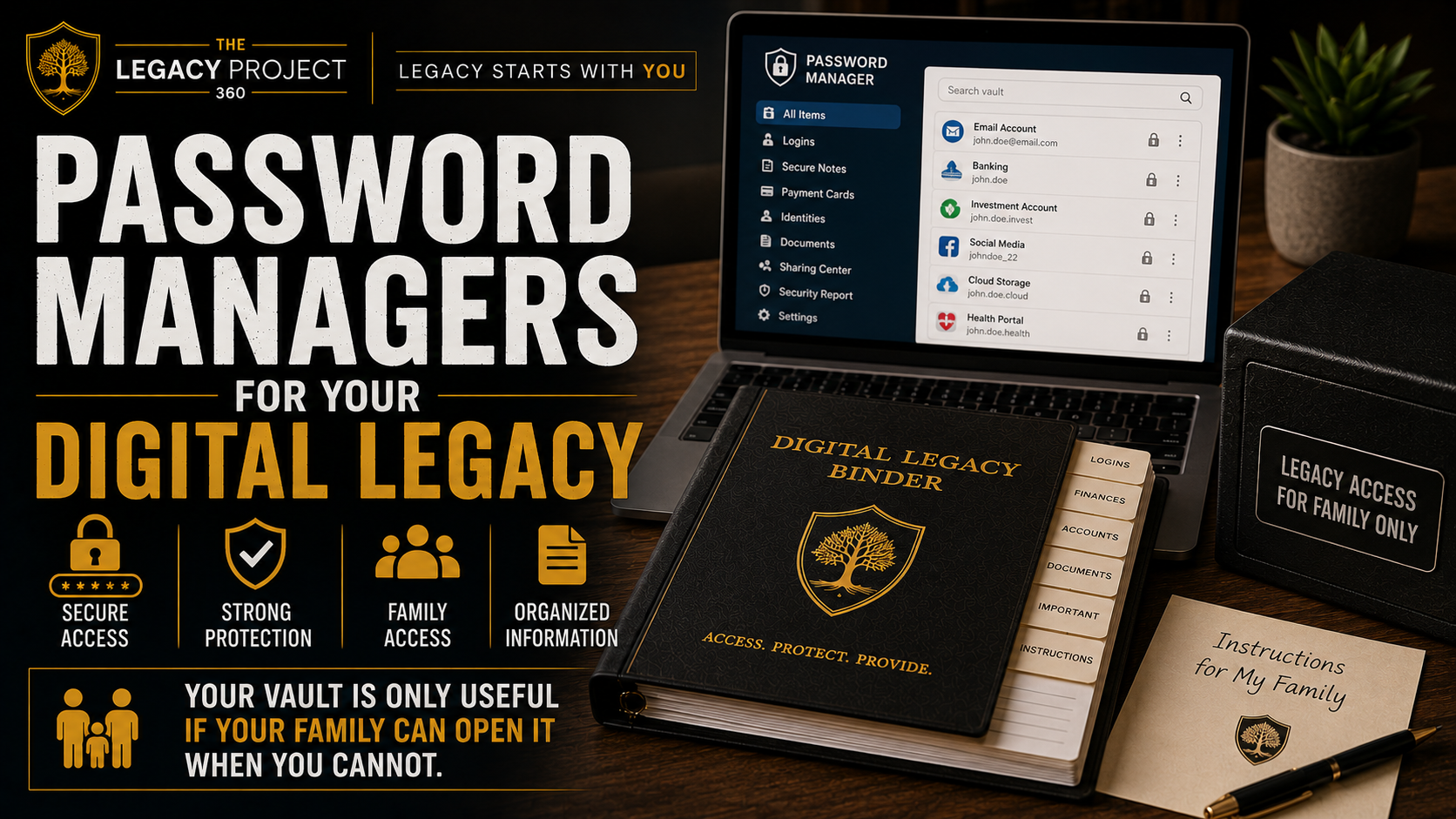
I had a stark realization one day. My digital life was locked down tight. Strong passwords. Two-factor authentication. Everything encrypted. Then I realized none of my family knew how to open any of it. Security for me. Inaccessibility for them.
That is the gap I want to help you fix.
A password manager is one of the smartest tools you can use. But a password manager that only you know how to access is actually a liability for your family. They need to know it exists, where it lives, and how to open it when you cannot.
What You'll Learn
Why password managers matter for family security
Which password managers work best for families
Built-in options and their limitations
How to document everything in your Legacy Binder
Emergency access workflows that actually work
A practical checklist to get started
A vault is only helpful if survivors can open it. Security for you means nothing if it creates inaccessibility for them.
Why Password Managers Matter for Families
A password manager centralizes your logins into one encrypted vault protected by one strong master password. Banking. Utilities. Email. Medical portals. Subscriptions. Everything lives in one secure place.
In daily life, this solves a real problem. Most people reuse passwords because strong, unique passwords are impossible to remember. A password manager lets you have different strong passwords for every account without the burden of memorization.
In an emergency, a password manager prevents your family from hunting through drawers, email inboxes, and scraps of paper looking for account numbers. They have one place to look. One process to follow. That clarity matters when grief and stress are already overwhelming.
But here is the critical piece. Your family needs to know your password manager exists. They need to know what app you use, which email address holds the account, and how to access it. Document it. Store it safely. Tell the right people where it is.
This week, choose a password manager and document the name. Next week, create a simple one-page guide for your family explaining where it is and how to find it.
Top Password Manager Options
All the managers I recommend work across iOS, Android, Mac, Windows, and Linux. That cross-platform support matters when families mix devices.
1Password Family (Polish Plus Premium)
1Password is the smoothest daily experience I have tested. It has clear family vaults for shared accounts, strong emergency access options, and passkey support. The 1Password Family plan costs four dollars ninety-nine cents per month for five users.
It is not the cheapest, but it is the one I recommend when families want fewer headaches and clearer sharing controls.
Bitwarden Free (Best Value, Open Source)
Bitwarden Free is the top free password manager in most 2026 reviews because it supports unlimited device sync and uses strong AES-256 encryption. It is open-source and transparent about its security.
The trade-off is less polish than premium apps. It works, but the interface is more straightforward than flashy. For families who want to save money without sacrificing security, Bitwarden is hard to beat.
Dashlane Plan (Feature-Rich)
Dashlane shines if you want built-in dark web monitoring, password health reports, and a VPN included. The family option covers up to ten members for seven dollars forty-nine cents per month. The trade-off is that emergency access can feel less straightforward than 1Password.
LastPass (Familiar, But Proceed with Caution)
LastPass is widely adopted and easy to use. But the 2022 breach and later regulatory fines are real reasons to be cautious. If your family uses it, I recommend building a strong Legacy Binder backup plan and a secondary recovery path outside the app.
A password manager without a documented backup plan is a liability in an emergency. Write it down, store it safely, and tell trusted people where it is.
Built-In Options: Apple and Google
If your entire household uses Apple devices, Apple Passwords syncs through iCloud and works across iPhone, iPad, Mac, and Windows. If your family lives in Android and Chrome, Google Password Manager is built in and free.
The limitation with both is that they lack true family vault sharing and dedicated emergency access features. If you use either, you absolutely need a paper backup plan stored in a safe or safety deposit box.
How to Document Everything
In your Legacy Binder, record these exact items:
Password manager name and the email address used for the account
Master password (on paper, stored in a safe)
Recovery key or backup codes (also on paper, also in the safe)
Which devices the app is installed on
Emergency access setup: who is approved, waiting period if applicable, and how they request access
Trusted contacts: name two to three people, their roles, and what each person is allowed to access
Place a printed copy in your Legacy Binder. Store the actual master password and recovery keys in a physical safe or safety deposit box. Tell two or three trusted people exactly where it is stored and who holds the keys.
Emergency Access Workflow
Verify the person's identity using a preset method (call a contact, confirm a code word, follow your family rule).
Retrieve the Legacy Binder page from the safe.
Open the password manager and sign in using the documented method.
Use the emergency access feature if enabled, or use the master password and recovery key.
Transfer accounts to new ownership: update email addresses, phone numbers, then rotate passwords.
Quick Template
Password Manager: __________
Login Email: __________
Master Password: Stored in __________ (location)
Recovery Key: __________
Trusted Contacts: __________ (role + access level)
Emergency Access: __________ (how + waiting period)
Last Updated: __________
A digital vault without a physical backup and access plan is unusable by survivors. Write it down, store it safely, and make sure at least two people know where it is.
Consider Mixed-Device Households
Here is a realistic scenario. Dad uses Apple Passwords. Mom uses Chrome with Google Password Manager. Their college kid uses Android plus a Windows laptop for school. Grandma has an old iPad with medical portals she cannot migrate.
Everyone is fine until someone needs to pay a bill or cancel a subscription during an emergency. Suddenly nobody knows which vault holds what, or which device has the codes. This is where cross-platform households get stuck.
The solution is the same. Centralize the documentation in one place: your Legacy Binder. List every password manager in use, where it lives, who has access, and how to open it.
One family member using Apple Passwords is manageable. Three different password systems across one household is exactly why documentation matters.
Where to Go From Here
Your password manager is a security tool. Your Legacy Binder is the instruction manual that makes it usable for your family.
This week, list every password manager or login system your household uses. Next week, document the master passwords and recovery keys on paper. The week after, store those papers in a safe or safety deposit box.
Tell your spouse and one trusted backup contact exactly where that safe is and how to access it.
That documentation is the difference between a locked vault and a readable one.
Create your one-page password manager documentation page this week. List the app, the email, where the master password is stored, and who to contact in an emergency. Print it. Store it. Tell the right people where it is.