
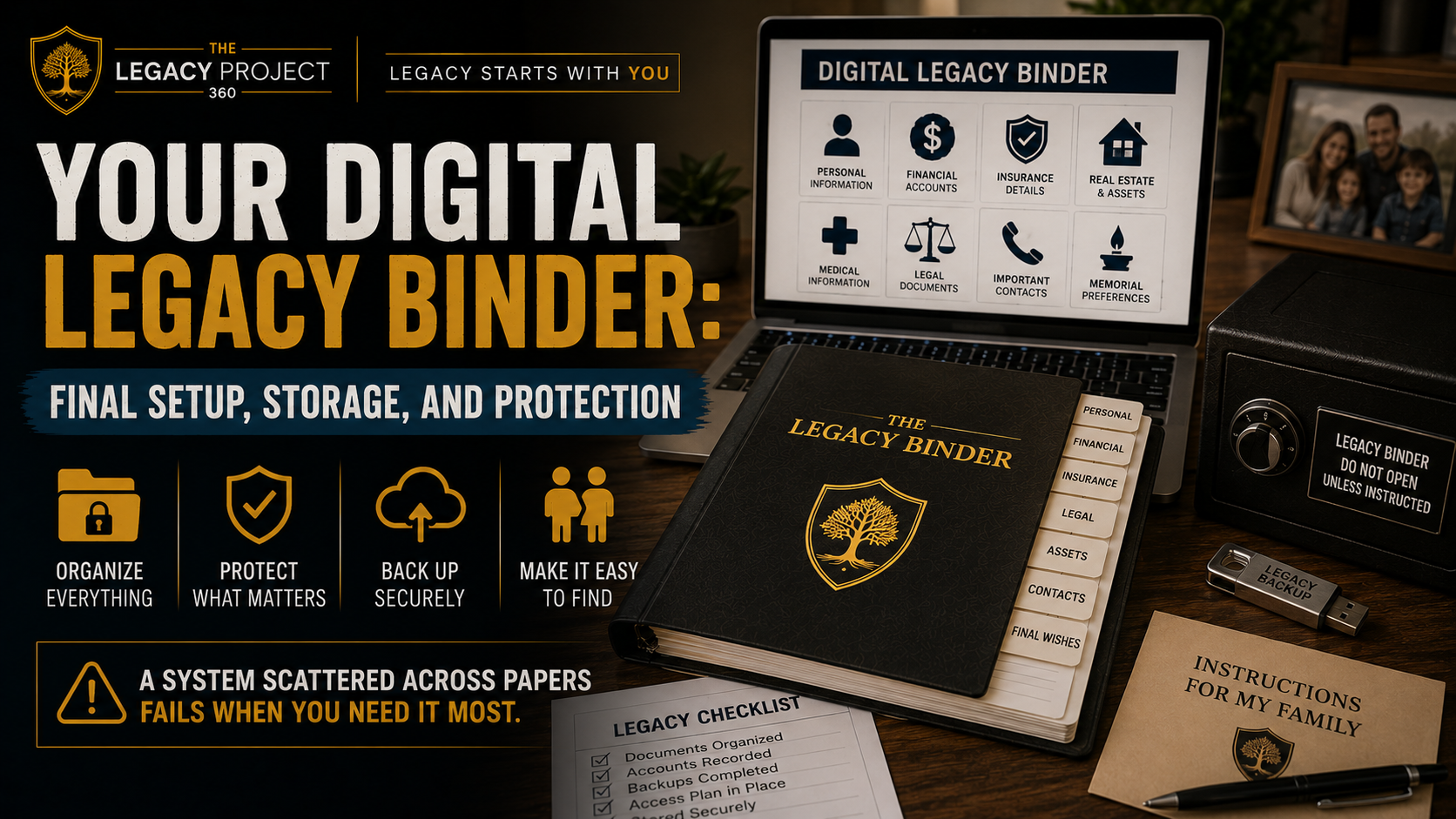
You have built your Legacy Binder. You filled it with the three core sections your family needs: Key Family Information, Financial Continuity Information, and Need to Know Files. Now your binder needs a home where it stays safe, accessible, and backed up automatically.
Building a binder and leaving it sitting on your shelf is like writing a will and hiding it in a drawer. Technically complete. Practically useless. The information exists somewhere. Your family has no idea where.
A system that exists only in your mind or scattered across papers is a system that fails when you need it most. Your Legacy Binder belongs in encrypted cloud storage where your family can access it from anywhere, anytime, and where it survives fires, floods, and hard drives that quit working.
Google Drive is the recommendation. Not because it is fancy. Because it is simple, secure, free, and works exactly when your family needs it. Everything you read in this chapter applies equally to Dropbox, OneDrive, iCloud, or Box. But Google Drive is where most families find the right balance between ease of use and capability.
What You'll Learn
- Why Google Drive is the ideal home for your Legacy Binder
- How to organize your three main sections in cloud storage
- How to structure folders for Key Family Information, Financial Continuity, and Need to Know Files
- How to name files so anyone can find them during stress
- How to secure everything with two-factor authentication
- How to grant family members access based on their role
- How to transfer your entire account to trusted contacts
- Why you still need a physical copy even with cloud storage
- How to scan documents with your smartphone
- Complete security checklist before you finish
The information exists somewhere. Your family has no idea where. A system that exists only in your mind or scattered across papers is a system that fails when you need it most.
Why Your Legacy Binder Belongs in Google Drive
Your Legacy Binder contains the three essential categories your family needs:
Key Family Information — Emergency contacts, medical summaries, family details, personal preferences, location of important documents, healthcare proxies, funeral preferences, digital asset locations
Financial Continuity Information — Bank accounts, insurance policies, investments, property deeds, retirement accounts, passwords for financial systems, tax records, subscription services, loan information
Need to Know Files — Wills, powers of attorney, health directives, birth certificates, marriage certificates, medical records, identification documents, insurance cards, anything your family needs to find immediately
This information needs to be accessible from any device, backed up automatically, and shareable with specific people you trust. Google Drive does all three, and every feature you need is free.
When your Legacy Binder lives in Google Drive, your spouse can access it from their phone during an emergency. Your executor can find financial documents without hiring a lawyer to search. Your family knows exactly where everything lives. You control who sees what. Everything is backed up automatically to Google's servers. No printing multiple copies. No worrying about a binder left on a shelf gathering dust. No hoping someone finds it when they need it.
Your Legacy Binder becomes a living system that stays current and always available. You update a document once and everyone with access sees the change immediately. No emails to send. No copies to distribute. No confusion about which version is correct.
Consider what happens without a system like this. Your spouse spends days after your death searching email accounts, file folders, and bank statements trying to find account numbers. Your executor hires a probate attorney because they cannot locate your will. Your children discover subscriptions you forgot about, still charging money months after you are gone. Your family misses deadlines for insurance claims because they do not know policies exist. Relationships strain under the weight of searching through your digital life while grieving.
How the Three Sections Map to Your Google Drive
Before you open Google Drive, understand how the book's structure translates to cloud storage. You have built three main categories throughout this book. Those three categories become your three main folders in Google Drive.
The book guided you through filling out Key Family Information first. This includes emergency contacts, medical summaries, doctors' names and phone numbers, insurance company contacts, and locations of important documents. Everything someone needs to call, email, or locate on the worst day.
Financial Continuity Information came next. This is where account names, institution names, and references live. Not passwords. References. Your Google Drive folder points people toward where that information lives and how to access it safely.
Need to Know Files is your third pillar. These are documents that must be found. Wills. Powers of attorney. Health directives. Birth certificates. Insurance cards. Medical records. The physical paperwork or digital documents that prove what your wishes are.
In Google Drive, these three sections become three separate folders. Everything someone needs is organized within those three categories. Clear. Simple. Findable under stress.
Setting Up Your Google Drive Legacy Binder
Start here. This takes fifteen minutes.
Step One: Create Your Main Folder
- Go to drive.google.com
- Click "Create" on the left side
- Select "New folder"
- Name it "Legacy Binder" or "Family Preparedness"
- Click "Create"
That is your command center. Everything lives here.
Step Two: Create Your Three Main Category Folders
Inside your Legacy Binder folder, create three folders matching the book's structure. These are not arbitrary categories. They reflect how your family will search for information during high stress.
When your spouse needs to call your doctor, they go to Key Family Information. When your executor needs to access your bank account, they go to Financial Continuity Information. When your family needs to read your will, they go to Need to Know Files.
The three folders are:
Key Family Information — This is the emergency response folder. Everything someone needs to take action immediately lives here. Emergency contacts with phone numbers. Medical summary with allergies, medications, and doctors. Locations of other important documents. Family details like children's names, birthdates, and schools. Funeral preferences if you have them. Healthcare proxy information. This folder answers the question: "What do I need to do right now?"
Financial Continuity Information — This is the organization folder. Account names, institution names, reference information. Bank name and account type. Insurance company name and policy number. Investment account locations. Retirement account details. Property information. Subscription services. This folder answers: "Where is the money and what accounts exist?"
Need to Know Files — This is the document folder. Actual files and PDFs. Your will. Your power of attorney. Your health directive. Birth certificates. Marriage certificate. Identification documents. Insurance cards photographed or scanned. Medical records. Anything that is itself a document rather than information about a document. This folder answers: "Where is the actual document I need?"
You can either keep everything in these main folders, or add subfolders underneath if you want more organization. Both approaches work. A family with five bank accounts might create a Bank Accounts subfolder under Financial Continuity. A family with extensive medical records might create a Medical Records subfolder under Need to Know Files. Choose whichever approach fits your situation. Neither is wrong.
Step Three: Add Your Documents
Upload PDFs directly. Upload photos of documents. Create Google Docs that summarize complex information. Link to accounts stored elsewhere. Your binder becomes the index that tells your family where everything lives and how to access it.
The binder does not need to contain every document you own. It needs to point to where everything lives.
File Naming That Works Under Stress
A stressed person searching through your folders has seconds to decide if they are looking at the right file. File names matter.
Use Clear, Simple Names
- Birth_Certificate_John_Doe
- Bank_of_America_Checking_Account
- Health_Insurance_2025
- Will_John_Doe_2024
- Emergency_Contacts_List
- Property_Deed_123_Main_Street
Avoid
- scan_final_v2
- document
- Final_FINAL_v3_ACTUAL
Add years to files that change: Auto_Insurance_2025, Tax_Return_2024. When next year arrives, the old version stays visible with its year labeled clearly.
Start today. Create your folder. Add your three main sections. Upload five core documents. Share access with your spouse. Enable two-factor authentication. Set up Inactive Account Manager. That foundation takes thirty minutes and gives your family clarity when they need it most.
What Goes In Google Drive, What Does Not
Your binder should contain copies or links to almost everything. Exception: passwords.
Passwords go in a password manager (1Password, Dashlane, Bitwarden, or your phone's built-in manager). Your Google Drive folder holds account names, links to services, and a note that says where your password manager lives. That keeps your most sensitive data in a tool designed specifically to protect it.
Similarly, store references to Social Security numbers and full financial account numbers rather than the numbers themselves. Your binder can say "Social Security Number: stored in password manager" instead of displaying the actual number.
Securing Your Legacy Binder
Your Legacy Binder contains some of the most sensitive information in your life. Not just your passwords and accounts. Your family's medical information. Your financial details. Your private wishes. Your end-of-life instructions.
Treating security casually is not an option. Three non-negotiable steps protect everything.
Enable Two-Factor Authentication
- Go to myaccount.google.com
- Click "Security" on the left menu
- Click "2-Step Verification"
- Add your phone number
- Confirm the code Google sends
Two-factor authentication means your account requires both your password and access to your phone to open. This stops most hacks immediately.
Use a Strong, Unique Password
Use a password you do not use anywhere else. At least 12 characters. Mix uppercase, lowercase, numbers, and symbols.
Keep Your Recovery Information Current
Your recovery email and phone number are how Google helps you regain access if something goes wrong.
- Go to myaccount.google.com
- Click "Personal info"
- Update your recovery email and phone number
Treating security casually is not an option. Your Legacy Binder contains some of the most sensitive information in your life. Not just your passwords and accounts. Your family's medical information. Your financial details. Your private wishes.
Granting Family Access
The power of Google Drive is that you decide exactly who sees what.
How to Share
- Right-click your Legacy Binder folder
- Select "Share"
- Enter a family member's email address
- Choose their permission level (Viewer, Commenter, or Editor)
- Click "Share"
Permission Levels
| Permission | What They Can Do | When to Use |
|---|---|---|
| Viewer | See and download, cannot change anything | Most family members |
| Commenter | See, download, and leave notes | Family members who might ask questions about documents |
| Editor | See, change, and delete | Only your spouse or one trusted person |
Recommended Access Structure
The goal is access, not secrecy. Different people need different things.
Spouse or Partner — Editor access to everything. They are running the household with you now and need to understand every detail. They might update addresses, add new documents, or modify contact information. They cannot be left guessing.
Executor — Editor access to financial and legal documents. Viewer-only access to medical information. Your executor needs to understand accounts, assets, and your will. They do not need access to your medical history unless you specifically designate them as your healthcare proxy.
Trusted Backup Helper — Viewer-only access to emergency contacts and access plan only. This is the person who gets called if something happens to your spouse. They need enough information to activate your system and contact the right people. Nothing more.
Adult Children — Viewer-only access to their own medical information only (unless your situation differs). Your children know where to find their own medical summary, emergency contact information about themselves, and their role in the family plan. They do not have access to your financial information unless you explicitly give it to them.
Aging Parents or Other Dependents — Access to information that directly affects them. Your parents might need access to your health information if they are listed as an emergency contact. Your teenage children might need access to family emergency procedures. Customize this based on what makes sense.
When you share access, be explicit about what the person is accessing and why. "I have given you Editor access to my Legacy Binder folder. You can see and modify financial documents, insurance information, and account details. Your brother has Viewer access to the same documents. Your sister has access only to her own medical information. Questions?" This eliminates confusion later.
Google Inactive Account Manager: Access After You Are Gone
Google provides a tool that automatically transfers your account to designated people if you stop accessing it for a set period (3, 6, or 12 months). This ensures your family does not need a lawyer just to access documents you already organized.
Set It Up
- Go to myaccount.google.com
- Click "Security"
- Look for "Inactive Account Manager"
- Click it
- Set your inactivity period
- Add email addresses of trusted contacts
- Specify they receive access
- Save
Takes ten minutes. Provides enormous peace of mind.
Digital Plus Physical
After you store everything in Google Drive, print a physical copy. Not because digital fails often. Because when it fails, you want paper.
Print your critical pages. Put them in a binder. Store that binder in your home in a location your family knows about. Digital works until the internet stops. Physical works until water or fire stops it. Prepared families have both.
You also might keep a portable subset in a go bag or safe. Digital copy for daily access, physical copy as backup, portable copy for evacuation.
Scanning Documents With Your Phone
You do not need a scanner anymore. Your phone does this.
Search "scan documents on iPhone" or "scan documents on Android." Your phone's camera app (iPhone) or Google Drive app (Android) has a built-in document scanner that automatically crops, straightens, and converts to PDF.
Five minutes to learn. Minutes per document to scan. Upload directly to your Legacy Binder folder.
Other Cloud Storage Options
Google Drive is the recommendation, but Dropbox, OneDrive, iCloud, Box, and iCloud all work with the same folder structure and sharing approach. If you already use one of these or prefer it, use the same three-folder system you would use with Google Drive.
The organizational principles matter more than the platform.
Before You Finish: Security Checklist
- Strong, unique password created
- Two-factor authentication enabled
- Recovery email and phone updated
- Inactive Account Manager set up to transfer account to trusted contacts
- Three main folders created (Key Family Information, Financial Continuity, Need to Know Files)
- Documents uploaded with clear file names
- Passwords stored in password manager, not in Google Drive
- Family members given appropriate access
- Inactive Account Manager configured to transfer your account if needed
- Family members confirmed they can access what you shared
- Physical copy printed and stored
- Tested access from a mobile device
Maintaining Your Legacy Binder Over Time
Creating your binder is not the end. It is the beginning. A binder you build once and abandon is less useful than no binder at all. A stale system breeds false confidence. You think you are prepared when you are not.
Maintenance does not mean constant work. It means a simple annual review triggered by a calendar date or life event.
Annual Review Process
Set a calendar reminder for one day each year. Your birthday works. New Year's Day works. The day you got married works. Any date you will remember.
When that date arrives, spend thirty minutes going through your binder. Open Key Family Information and check if phone numbers are current. Did you change doctors? Update it. Did someone in your family get married? Update it. Did you move? Update your address.
Open Financial Continuity. Did you open a new account? Add it. Did you close an account? Remove it. Did your insurance change? Update it. Are subscription services current?
Open Need to Know Files. Did you update your will? Upload the new version. Did you get new insurance documents? Add them. Is your identification still valid?
Review access permissions. Does your executor still make sense? Does your trusted helper still live locally? Have family relationships changed such that access should be adjusted?
Test access. Ask your spouse to confirm they can access financial documents. Ask your executor to confirm they can see what they need.
Most families find that annual maintenance takes thirty to forty-five minutes. Doing it every year keeps the system current and useful. The alternative is a system that worked for a moment and is now slowly becoming outdated.
Updating After Life Events
Annual review is minimum maintenance. But life events demand immediate updates.
After you get married, update your will and power of attorney. Upload new documents immediately.
After you have a child, update Key Family Information with their name, birthdate, and school. Update your will and executor list.
After you change jobs, update your financial information and insurance policies.
After a serious health diagnosis, update your medical summary and health directives.
After a move, update all addresses and emergency contact information.
After a major financial change, update financial continuity information.
Do not wait for the annual review. Update immediately when your life changes. The system only works if it reflects your current reality.
Final Thoughts
Your family should never have to search for the information they need on the worst day of their lives. A Legacy Binder in Google Drive puts everything in one place, accessible from anywhere, backed up automatically, and transferable to the people you trust.
The system does not need to be perfect. It needs to exist.
This is what separates families who are ready from families who hope. Hope is not a strategy. Preparation is.
Within a month, add more documents. Within three months, your binder is functional. Within six months, it is complete. Your family has what they need. You have what you promised them.
Your family should never have to search for the information they need on the worst day of their lives. The system does not need to be perfect. It needs to exist.